











The Ultimate Ceiling Fan Remote App Guide for 2026
Let’s be honest—we’ve all been there. You’re finally settled in for the night, and you realize the fan is on full blast. The last thing you want to do is get up and hunt for that tiny plastic remote that’s probably lost under a couch cushion. A ceiling fan remote app completely changes the game. It puts total control of your fan's speed, light, and even airflow right onto the one device you always have with you: your phone.
From Lost Remotes to Smart Home Control
The era of cheap, clunky fan remotes is thankfully behind us. Imagine adjusting the breeze from bed without moving an inch or turning the fan light off from the kitchen. That’s the simple, everyday convenience a ceiling fan app delivers. It’s not just a fix for a lost clicker; it’s a genuine upgrade to how you live in your home.
If you’re still wrestling with a missing remote, our guide on what to do when you've lost your ceiling fan remote has some helpful tips. But moving to an app elevates your fan from a standalone fixture to a smart, integrated part of your home. It gives you a level of precision that old-school remotes just can't match.
The Power in Your Palm
A well-designed app brings every smart fan in your house under one roof. No more juggling different remotes for the bedroom and the living room—just one clean interface. This is especially satisfying when you've invested in a high-end, stylish fan that deserves a control system just as sophisticated as its design.
Modern fans offer so much more than just basic speed settings. With a smart app, you can really unlock their full potential:
- Set Schedules: Have your fan turn on automatically to start cooling the living room before you get home from work.
- Fine-Tune Lighting: Dim the integrated light to create the perfect ambiance for movie night.
- Reverse Blade Direction: Switch to winter mode to help circulate warm air, all with a quick tap in the app.
This idea of consolidating controls is a core principle of home automation. The goal is to move toward a single app control for home automation, creating a seamless and truly connected living space.
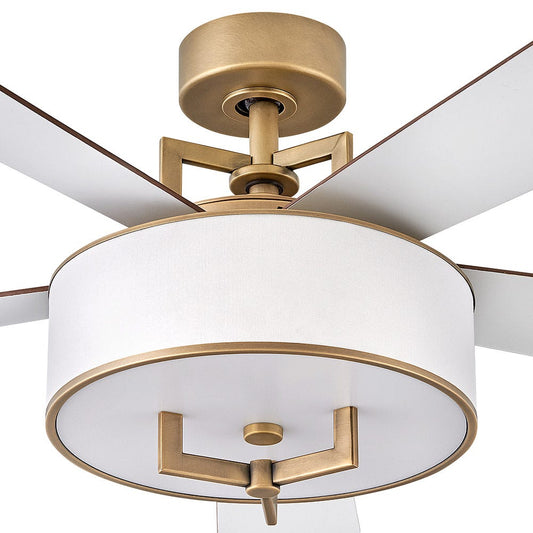
Take the elegant Aerovon DC Motor Ceiling Fan, for example, which starts from $348.00. When you pair its advanced, whisper-quiet motor with a smart app, you get more than just a beautiful fixture. You can make tiny, precise speed adjustments and track energy use, unlocking the fan's full potential for both comfort and efficiency. It’s how you turn a design piece into a high-performance smart device.
Picking the Right Smart Connection for Your Fan
So you’re ready to control your ceiling fan from your phone. That's great, but it’s important to know that not all "smart" connections are created equal. The technology that links your fan to an app—whether it's Wi-Fi, Bluetooth, or a separate hub—really dictates what you can do, how reliable it is, and how far you can be from the fan when you control it.
Getting this first step right is the key to effortless, everyday convenience.
The easiest way to figure out your path forward depends on one simple question: is your fan already "smart," or is it a classic, non-smart model?
This decision tree breaks it down perfectly.

As you can see, if you've got a smart fan, you're good to go with its dedicated app. If you're working with an older fan, a hub is your ticket to getting it connected.
Wi-Fi: The "Control from Anywhere" Option
Let’s start with the gold standard for a truly connected home: Wi-Fi. When your fan connects directly to your home’s wireless network, you get the power to control it from literally anywhere with an internet connection. Stuck in traffic and want to get the air circulating before you get home? No problem.
Wi-Fi is also what unlocks the coolest features, like voice commands through Amazon Alexa or Google Assistant and integrating your fan into smart home routines. For anyone investing in a premium, design-forward fan like the gorgeous Artemis XL5 DC Motor Ceiling Fan (starting at $858.00), Wi-Fi is a must-have. A fan with that kind of presence deserves a control system to match.
Bluetooth: Simple, Direct, In-Room Control
If you just want straightforward control without messing with network passwords, Bluetooth is a fantastic choice. The setup is usually dead simple—just open the app, find the fan, and you’re paired. You just need to be in the same room, or at least within about 30 feet, to make adjustments.
This makes Bluetooth perfect for bedrooms, home offices, or anywhere you’re usually nearby when you want to change the fan speed. The only real downside is that range. You won’t be able to turn on the bedroom fan from the kitchen or while you're away from home.
RF/IR Hubs: Making Old Fans Smart
But what if you love your existing ceiling fan and don't want to replace it? That’s where universal RF (Radio Frequency) or IR (Infrared) hubs come into play. These little devices are miracle workers. They act as a translator, taking commands from a smartphone app and blasting them out in a language your fan's original remote receiver understands.
This is a brilliant and budget-friendly way to add smart capabilities to an older, non-smart fan. It perfectly bridges the gap between classic hardware and modern convenience.
The market is exploding with these solutions. In fact, dedicated ceiling fan remote apps are on track to hit over 5 million downloads worldwide by 2026, with some apps now supporting as many as 17 major fan brands. This empowers homeowners and installers to finally get different fans from different brands all working together in one place.
To give you a clearer picture, here’s a quick comparison of the three main technologies.
Wi-Fi vs. Bluetooth vs. RF/IR Hub Fan Apps
| Feature | Wi-Fi App | Bluetooth App | RF/IR Hub + App |
|---|---|---|---|
| Control Range | Anywhere with internet | Within ~30 feet (in-room) | Depends on hub placement |
| Setup | Connects to home Wi-Fi network | Direct pairing to your phone | Hub connects to Wi-Fi, then learns fan's remote signals |
| Smart Home Integration | Excellent (Alexa, Google, etc.) | Very limited or none | Good (hub is the smart device) |
| Best For | Whole-home control, voice commands, and automation routines | Single-room control, simplicity | Upgrading existing, non-smart fans to be smart |
| Away-from-Home Control | Yes | No | Yes |
Each option has its place, and the right one for you just depends on the fan you have and what you want to achieve.
For a deeper look at how all these different pieces can fit together in a modern home, be sure to check out our guide on ceiling fans with smart home integration options.
Connecting and Configuring Your Fan Connection Model
Alright, you've got your new smart fan unboxed and installed. Now for the really cool part: ditching that old-school remote and getting everything synced up with your phone. This is usually pretty painless, but knowing the typical routine ahead of time will make it go much smoother, especially with high-end fans that have more bells and whistles.

Let's get this fan talking to your app. While the exact screens might look a little different from brand to brand, the basic pairing process is almost universal for modern Wi-Fi and Bluetooth fans.
The Power Cycle Pairing Dance
The first—and most important—step for nearly every smart fan is getting it into "pairing mode." This is how you tell the fan’s internal brain that it’s time to look for a new connection.
To do this, you’ll need to perform a quick power cycle. This isn't just a simple flick of the wall switch. You have to go to your home's circuit breaker, shut off the power to the fan's circuit for at least 30 seconds, and then flip it back on.
Pro Tip: This hard reset is non-negotiable. It clears out any old connection data and makes the fan discoverable. Most quality models, like those in our collections, will give you a little beep or flash their light to let you know they're officially in pairing mode. That’s your signal to grab your phone.
Once you hear that beep, the clock is ticking. You usually only have a few minutes to finish the setup in the app, so don't wander off to make a sandwich!
App Discovery and Initial Setup
With the fan ready to pair, it's time to open the manufacturer's app. For instance, if you invested in the beautiful Bowie DC Motor Ceiling Fan (from $618.00) or the sleek Chisel DC Motor Ceiling Fan (from $578.00), you’ll want to have the manufacturer's app downloaded and ready to go.
From here, the app will walk you through the rest:
- Finding the Fan: The app will immediately start scanning for discoverable devices nearby. Your fan should pop up on the screen in a few moments.
- Getting on Wi-Fi: For Wi-Fi-enabled fans, you'll be prompted to choose your home network and type in the password. A crucial tip here: make sure your phone is connected to your 2.4 GHz network. Many smart home gadgets can be finicky with 5 GHz bands during the initial setup.
- Giving It a Name: This is more important than it sounds. Give your fan a simple, logical name like "Living Room Fan" or "Bedroom Fan." This makes using voice commands with Alexa or Google Assistant so much easier later.
After it's connected, you can dive into the settings to tweak things like the fan's top speed, light dimming preferences, and even its seasonal direction (clockwise for winter, counter-clockwise for summer).
Specifics for Popular Fan Connection Models
Let’s get into some real-world examples. Pairing the gorgeous Artemis IV DC Motor Ceiling Fan (priced from $738.00) is a perfect illustration of this power-cycle-and-pair method. Because it has such an advanced DC motor, its app gives you incredibly precise control over the fan's six speeds—something a basic remote just can't match.
Likewise, for a powerhouse like the Artemis XL5 DC Motor Ceiling Fan, having a strong Wi-Fi signal is vital for it to run smoothly and give you access to all its features. If you've paired the app but find the physical remote is acting up, the issue could be in the wiring. It’s worth checking out our guide on the ceiling fan with remote wiring diagram to get a better sense of how all the pieces work together.
Unlocking Advanced Control and Energy Savings
Getting your fan connected to an app is a great first step, but the real fun starts when you dig into the features beyond just on/off and speed control. This is where you can seriously boost your comfort and start seeing a real difference in your energy bills. A good ceiling fan remote app turns your fan from a simple fixture into a smart, efficient part of your home.

This is how a premium model, like the elegant Aviation DC Motor Ceiling Fan (from $498.00), goes from being a beautiful centerpiece to a fully automated part of your home’s climate system.
Create Custom Schedules and Routines
One of the most powerful things you can do with a smart fan app is scheduling. Think about it: instead of fumbling for a remote when a room gets stuffy, you can have your fan automatically kick on right when you need it.
- Wake-Up Breeze: I love setting my bedroom fan to start on a low, quiet speed about 15 minutes before my alarm. It’s a much gentler way to wake up.
- Peak Heat Prevention: If your living room gets blasted by the afternoon sun, schedule the fan to run at a higher speed during those hours, even if you’re not home. You'll walk into a comfortable space instead of an oven.
- Evening Wind-Down: You can program the fan to automatically slow down and the light to dim as you get ready for bed.
This is true set-it-and-forget-it automation. Your home just stays comfortable, and you don’t have to lift a finger.
Embrace Hands-Free Voice Control
Honestly, the novelty of just telling your fan what to do never really gets old. Connecting your fan to a voice assistant like Amazon Alexa or Google Assistant is a game-changer for pure convenience.
Once it's linked up, you can use simple commands you’d use in a normal conversation:
"Hey Google, set the living room fan to 50 percent." "Alexa, turn on the bedroom fan light." "Alexa, reverse the fan direction."
This is perfect for those moments when your hands are full of groceries or you're already cozied up in bed. It’s the ultimate hands-free trick that makes your fan feel like a truly integrated part of your smart home. If you want to go deeper on this, check out our article on how smart ceiling fans can lead to energy savings and everyday comfort.
Maximize Year-Round Energy Efficiency
The savings are where things get really impressive. Smartly managing your fan with an app can make a real dent in your utility costs. We've seen how these Wi-Fi-enabled controls can help homeowners save an average of 23% on annual cooling costs. Based on ENERGY STAR data, that could add up to over $150 in savings per fan each year in the US market. You can explore compatible models and apps like Fan Smart Sync on the App Store to see what's possible.
The reverse function, which is just a tap away in most apps, is a huge part of this. In the winter, you flip the blade direction to push all that warm air trapped at the ceiling back down into the living space. This little trick makes your heating system work a lot less hard. It's what turns a high-end fan, like the powerful Andros DC Motor Ceiling Fan (starting at $798.00), into a year-round investment that actively cuts both your cooling and heating bills.
Solving Common App and Connection Issues
Even the best smart tech has its off days. You’ve gone through the setup, but now your ceiling fan remote app is acting up, or maybe the fan just keeps dropping off the Wi-Fi. It’s frustrating, I know. But don't worry—most of these hiccups are surprisingly simple to solve and rarely point to a problem with the fan itself.
Before you start unscrewing anything or calling an electrician, let's start with the basics. These simple checks resolve more than 80% of connectivity problems I see, and you can do them all yourself in just a few minutes.
Quick Fixes for App and Fan Problems
Is your app frozen or just not responding? The solution is often just a few taps away. Checking these things first will save you a world of headache.
- Check Your Wi-Fi Signal: A weak signal is the number one culprit. Is your router on the other side of the house? Thick walls, metal appliances, and even large furniture can block the signal. If the fan is in a known dead zone, try moving your router a bit closer or think about getting a simple Wi-Fi extender.
- Restart Everything: It’s a classic for a reason, and it works. First, completely close the app on your phone—don't just send it to the background. Then, restart your phone. For the fan, find its circuit breaker, flip it off for 30 seconds, and then turn it back on. This quick power cycle forces everything to reconnect.
- Update the App: Developers are always pushing out updates to fix bugs and improve how the app works. Pop over to your phone’s app store and see if a new version is waiting for you. An outdated app is a very common source of strange behavior.
If those quick fixes don't get you back up and running, it's time to look a little closer at the connection itself.
When the App Can't Find Your Fan
One of the most common complaints is the app failing to "see" the fan, either during the first setup or after it’s been working perfectly for weeks. When a fan goes rogue like this, the issue is almost always a communication breakdown on the network.
A frequent mistake I see people make is trying to connect their fan to a 5 GHz Wi-Fi band. Most smart home devices, including many high-end ceiling fans, are designed to work only on the 2.4 GHz band for setup because it provides a much longer and more stable signal range. Make sure your phone is connected to your 2.4 GHz network before you even start the pairing process.
Still no luck? A factory reset of the fan's receiver might be the next step. This process wipes any stored network settings and kicks it back into pairing mode. The exact steps can vary a bit between brands, but if you’re running into stubborn issues, our guide on what to do when your Minka Aire remote control is not working has troubleshooting tips that can be applied to many similar models.
The world of ceiling fan apps has come a long way, making it easier than ever to control your fan. In fact, IR Blaster-enabled Android apps like Fan Remote Control have been downloaded over 10 million times worldwide, adding smart control to a huge percentage of existing fans without any extra hardware. Premium brands like the Minka-Aire and Fanimation models you’ll find in our collections pair beautifully with these apps, giving you precise control over every speed. You can learn more about the Universal Fan Remote's impressive user ratings and features to see just how advanced the technology has become.
Common Questions About Ceiling Fan Apps
Diving into smart home tech is exciting, but let's be honest—it can bring up a few questions. When it comes to controlling your ceiling fan with an app, we hear the same handful of queries all the time. Here’s what you need to know.
Can I Make My Old, Non-Smart Fan App-Controlled?
Yes, you absolutely can, and it's a great weekend project. You don't have to replace a fan you already love. The trick is to install a universal smart fan receiver inside the fan’s canopy—that’s the metal cup that sits against the ceiling.
These kits are wired in between your home's power supply and the fan itself. Once it's installed, the receiver acts like a new brain for your old fan, letting it talk to a smartphone app over Wi-Fi or Bluetooth. Suddenly, your trusty fan has scheduling, app control, and sometimes even voice command capabilities. It’s a game-changer.
What Happens if My Wi-Fi Cuts Out?
This is a huge—and very valid—concern. If your fan is purely Wi-Fi-based, then yes, you'll lose app control and any voice assistant features when the internet goes down.
But here’s the good news: fan manufacturers know this is a weak point. Almost every smart fan on the market, especially higher-end models, comes with a physical remote. This remote usually works on Radio Frequency (RF) or Bluetooth, neither of which needs an internet connection. So while you might temporarily lose the "smart" features, you’ll never be stuck without basic control over the fan and light.
Think of the physical remote as your reliable backup. We always tell people to mount it on the wall or keep it in a specific drawer. When the Wi-Fi inevitably takes a five-minute break, you’ll be glad you did.
Are Those Universal Third-Party Fan Apps Safe?
It really pays to be careful here. Your safest bet is always, always the official app from the fan's manufacturer. It was built specifically for your fan, tested for security, and designed to protect your privacy.
If you’re tempted by a third-party universal app, do your homework. Only consider apps with millions of downloads from the Google Play Store or Apple App Store, and dig into the recent reviews. Look for complaints about security problems or buggy performance. If you're curious about what goes into making a good app, understanding the key factors to consider when developing an Android app gives you a behind-the-scenes look at the quality and security you should expect.
Can One App Control All the Fans in My House?
Absolutely! This is where smart control really shines. A single, well-designed app can manage every fan in your home.
During setup, you just add each fan and give it a clear name like "Living Room Fan" or "Bedroom Fan." From there, you can control each one individually or create groups. Imagine creating a "Sleep Mode" that turns off all the downstairs fans and sets the bedroom fan to a low speed with one tap. That’s the kind of convenience we’re talking about.
We believe finding the perfect fan should be simple. Our collections feature premium, stylish fans that pair beautiful design with the latest smart technology, with prices starting from over $300. Upgrade your home by visiting us at https://www.fanandlights.com.


